How Android batteries work
First, some background: most smartphones have either a lithium-ion battery or a lithium-polymer battery. Both are actually lithium-ion though, and as such, do not have a 'memory', which means you can charge them from any level – you don't have to fully discharge them before charging them up – and you don't have to charge them all the way to 100 percent.
In fact, these types of batteries suffer from low voltage problems, so it's actually better to partially charge them (say, from 20 percent to 90 percent) than to fully charge and fully drain them. Battery care is always open for debate though, so for every accepted tip there will be someone that says it makes no difference. Just find the ones that work for you and you can increase battery on your Android device.
To our chagrin, most flagship devices released in 2016 don't have removable batteries. This looks like it won't change anytime soon. And despite most of them being close to 3,000 mAh they still need to be optimized, especially for Pokémon Go. Take advantage of some of the tips below and really get the most out of your smartphone.
Black wallpaper can increase battery
If your phone has an AMOLED screen (like most Samsung devices), use a dark-colored background. Black wallpaper can increase battery life because AMOLED screens only illuminate the colored pixels. Black pixels are unlit, so the more black pixels you have, or the more darker pixels, the less power is needed to light them up.
To download a completely black wallpaper, tap the link here. Now, save the picture and go into your Settings. From there tap Wallpaper hit Choose wallpaper and scroll down to Gallery. You should be able to find the black wallpaper you just saved. Hit set to wallpaper and lock screen. Watch the video below to see how this is done.
.Doze
.Doze
With the arrival of Marshmallow came a new feature called Doze, which helps you get more out of your device's battery. Along with Google Now on Tap, Doze is the most notable addition to Marshmallow. It is enabled by default and essentially allows your device to enter hibernation mode when it has been sat unused for a prolonged period of time.
The effect of this is that your phone now sleeps when you sleep, and will lose just 3-5 percent of its battery power during an average night, rather than up to a quarter, as it would have done without Doze. Apps are not obliged to use Doze, and you can view which ones use it and which don't inSettings and edit the list if you want to. In addition, Sony has said it's planning to incorporate its own enhanced stamina mode into Marshmallow for its Xperia range.
The effect of this is that your phone now sleeps when you sleep, and will lose just 3-5 percent of its battery power during an average night, rather than up to a quarter, as it would have done without Doze. Apps are not obliged to use Doze, and you can view which ones use it and which don't inSettings and edit the list if you want to. In addition, Sony has said it's planning to incorporate its own enhanced stamina mode into Marshmallow for its Xperia range.
Turn off Google hotwords
Stop your phone from always listening. Google's OK Google voice searching is a fantastic and often very functional feature. The problem is that it can wreak havoc with your battery. Especially if you don't actually use it or only use it occasionally.
Go into Google settings from your app drawer and tap Voice heading. On the next page, select OK Google detection. In this menu, the best option for battery life would be to untick all the boxes, but if you are a fan of OK Google, just tick the From the Google app box to ensure your device is only listening when you're in the Google app. Don't let your apps fall behind the times
Keep your apps updated. There's a reason developers constantly update apps, and most of the time it's for memory or battery optimization. Keeping your apps updated also means you have the best optimizations available. Likewise, delete old apps you no longer use, because these may be running background processes that chew up RAM and battery life.
Once you've ensured your apps are up-to-date you can go through them individually and check if they're optimized for battery life. This can be done quite quickly. Just go into yourSettings and tap Battery. From there hit the menu button (three dots at the top right of your screen) and go to Battery optimization. From there you can see which apps are optimized and change them. You can only change the non-essential system apps.
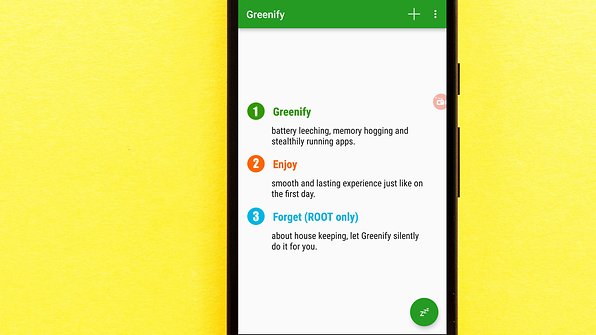
This can be helpful in many situations. For example, you might use the Amazon app to browse for things to buy, but don't want it to operate in the background or send notifications. There might be other apps on your Android device operating in the background without a good reason. Greenify stops this by sending those apps into hibernation, which reduces their impact on the system, saving battery life while improving performance.

Don't use adaptive/auto brightness
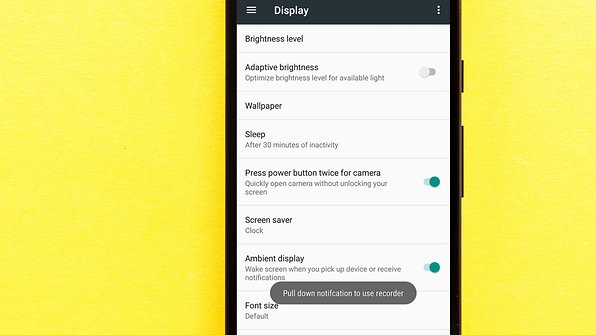
Don't use display auto-brightness. It may sound useful, but auto-brightness is usually way brighter than you really need. It's better to manually set the brightness to a level that is low but comfortable, and bump it up when necessary. This is one of the best ways to improve your battery life, because the screen is one of the biggest battery suckers.
To ensure your adaptive/auto brightness is off go into the Quick settings in many devices and you should see Auto with a box above and a checkmark in it. Uncheck this box and your auto will be off. With some devices you might need to go into theSettings then tap Display. From there you should see Brightness level and in it you'll find the auto settings.
Turn off vibrate and haptic feedback to save battery
Switch off vibrate. Unless you really need that added awareness, turn off vibration alerts for incoming calls. It actually takes more power to vibrate your phone than it does to ring it. Turn off haptic feedback too (that buzz you get from typing on the keyboard). Sure it feels cool, but it doesn't really add anything to your experience, and it's another battery drainer. Watch the video below to see how you can do this.
Set your 'Do Not Disturb' or 'sleep' schedule
Set sleep times or blocking mode to switch off Wi-Fi and mobile data when you don't need them. If your phone is basically off limits at work, set your device to not ring, vibrate or connect to the internet while you're at work. Many phones have a Do Not Disturb setting for just this purpose.
Likewise, you can set your phone to airplane mode when you're asleep or use sleep or blocking modes to set up limits for what your phone does during certain times of the day, whether that's while you're asleep, at work or in a meeting. Cool apps such as IFTTT let you create rules that can help you save battery
You don't need to be connected 24/7
Turn off GPS, Bluetooth, NFC, Wi-Fi and mobile data whenever you don't need them. Turning off location data, or changing your location settings to use Wi-Fi or 3G data rather than GPS works perfectly well. This will increase battery on your Android device.
Only turn on Bluetooth and NFC as long as you need them (even though they consume very little power), and there's no need to have both Wi-Fi and mobile data turned on at all times, especially if you know exactly when you'll need one or the other.
If you use Wi-Fi a lot though, say at home and at work, then it makes sense to keep set your Wi-Fi to 'Always on during sleep' as this uses less power than to have your Wi-Fi reconnecting every time you wake your phone. Most of these can be found in your Quick settings.
Don't get bogged down by widgets
Ditch widgets you don't need, especially those connected to the internet, such as weather widgets. If you have multiple widgets across several home screens, which are constantly syncing and updating (Twitter, reddit, weather, Gmail and the like), you're not doing your battery any favors. Just hit the apps when you need them.
If you already have a bunch of useless widgets on your device then you just need to do a couple of things and they'll be gone. Long press on a blank space on your home screen. Now drag the widget you don't need into the trash bin at the top or bottom of your screen (it depends on the brand).
Explore the battery saving features on your phone
All ROMs, whether stock Android, OEM UIs such as TouchWiz, or custom ROMs like CyanogenMod, have various settings in the menu to help conserve or optimize battery consumption.
HTC has Extreme Power Saving Mode, Samsung has Ultra Power Saving Mode, Sony has STAMINA mode and so on. Find these various options for your device and ROM and make them work for you.
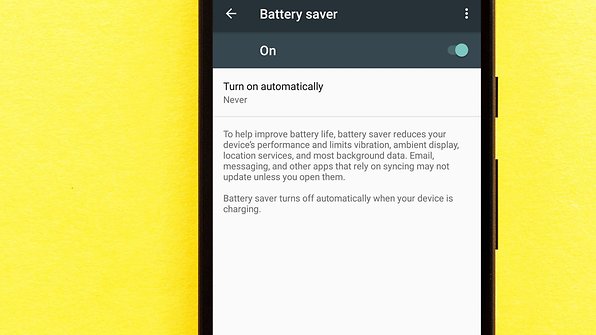
Even if your phone doesn't have layers of battery saving features like some (or you simply don't want disable so many features), at least make use of the basic battery saver mode. Even stock Android Lollipop has it by default and Android M has the great Doze feature (as mentioned above) to help reduce battery consumption while your phone is asleep.
Don't fall into the auto-sync trap
Turn off auto-syncing for Google accounts. If you don't need every single Google account updated every 15 minutes, just go into Settings andGoogle account and turn off auto-sync for those apps you don't need constantly updated.
Some apps – like email – let you manually refresh when you launch them, rather than running multiple auto-refreshes throughout the day when you may not need them to. The same goes for Twitter, Reddit and co. Unless you need constant updates or push notifications (like for Facebook or your calendar) just sync when you actually use the app.
Did we miss anything? What are your best battery saving tips? Tell us about them in the comments.
Comments
Post a Comment